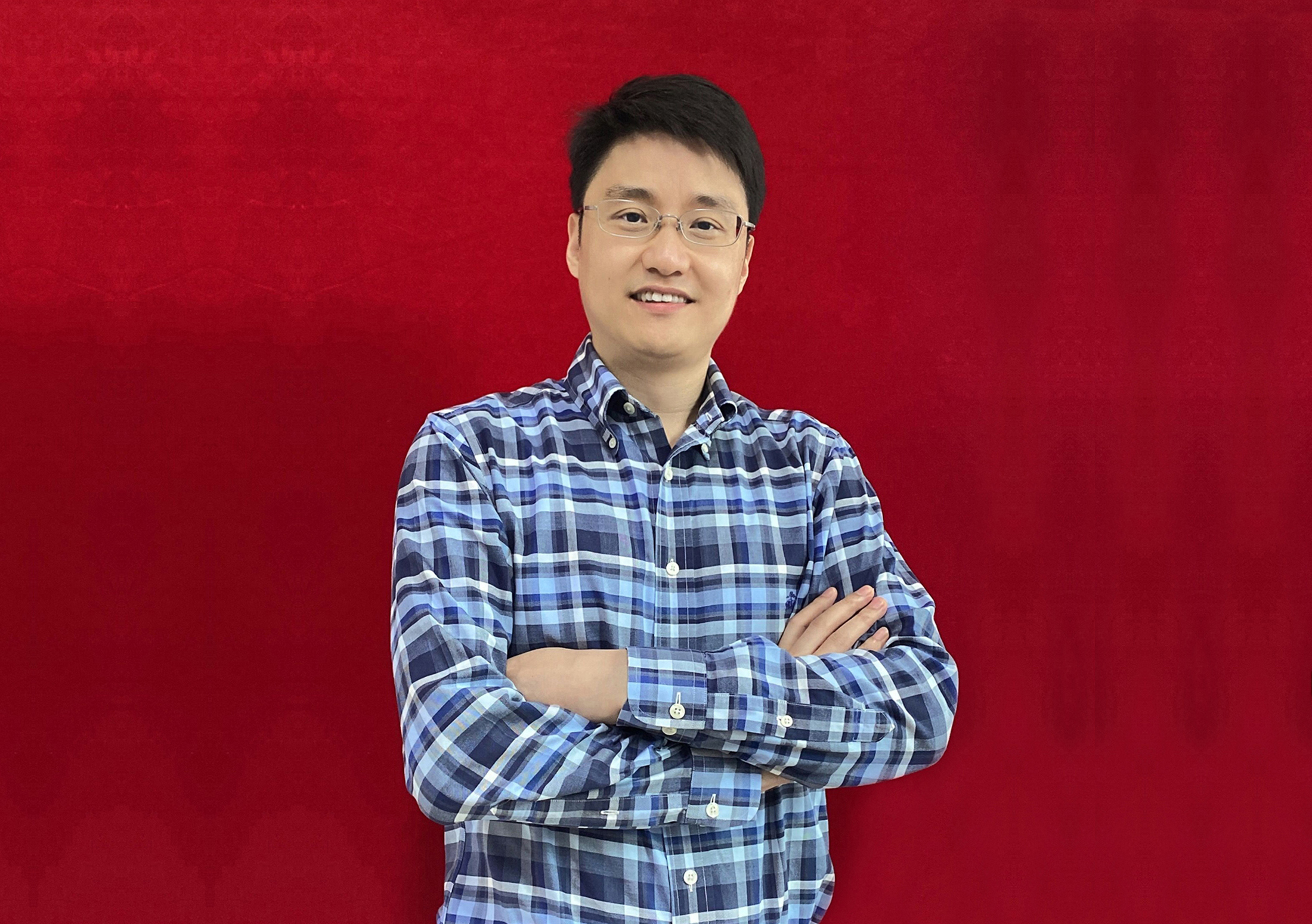
Skypine CEO:Justin Chang
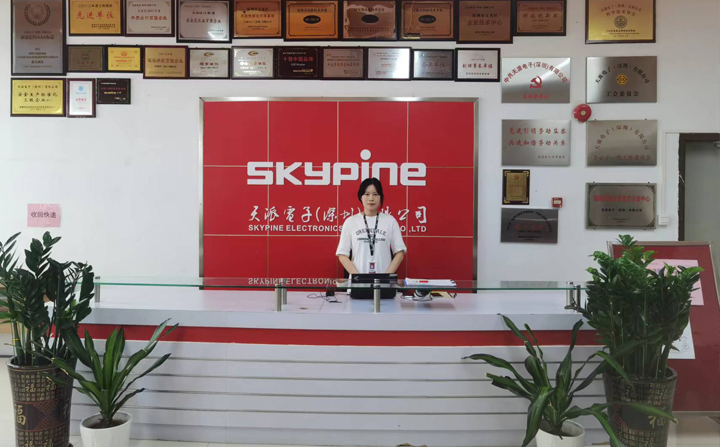
Time flies. Since its establishment in 2005, Tianpai has gone through 18 years of wind and rain. Over the past ten years, having experienced both glory and low points, Tianpi has broken all the way through the thorns. In the increasingly complex competitive environment and external environment, it always sticks to innovation and quality and wins the trust of customers.
At present, the company's performance is growing steadily, the market scale is expanding, the management level is improving effectively, the team building is effective, the corporate culture is rich and colorful, the social reputation is improving year by year, the company has stepped into the fast lane of sustainable development!
The sound of development urges people to rush, and the sound of leap forward is more waiting. Looking forward to the future, with the mission of "the pursuit of excellence, constantly committed to providing products beyond customer expectations", we will remain dedicated, professional and innovative. We will stay true to our original intention and forge ahead to create greater value for customers, employees and the society!